
OpenAPI UI
Overview
SmallRye offers an OpenAPI user interface component which displays a web page based on your application’s OpenAPI document. Through that UI, users can invoke the operations declared in the document.
The Helidon OpenAPI component allows you to integrate the SmallRye UI into your application, adding the UI web page to your application very simply.
Maven Coordinates
To enable Helidon OpenAPI UI support, add the following dependency to your
project’s pom.xml (see Managing
Dependencies).
<dependency>
  <groupId>io.helidon.integrations.openapi-ui</groupId>
  <artifactId>helidon-integrations-openapi-ui</artifactId>
  <scope>runtime</scope>
</dependency>
And add a runtime dependency on the SmallRye UI.
<dependency>
  <groupId>io.smallrye</groupId>
  <artifactId>smallrye-open-api-ui</artifactId>
  <scope>runtime</scope>
</dependency>
Also make sure your project has the following dependency to include OpenAPI support in your Helidon MP application.
<dependency>
  <groupId>io.helidon.microprofile.openapi</groupId>
  <artifactId>helidon-microprofile-openapi</artifactId>
  <scope>runtime</scope>
</dependency>
Usage
After you modify, build, and start your Helidon MP service, you can access the
OpenAPI UI by default at http://your-host:your-port/openapi/ui. Helidon also
uses conventional content negotiation at http://your-host:your-port/openapi
returning the UI to browsers (or any client that accepts HTML) and the OpenAPI
document otherwise.
You can customize the path using configuration.
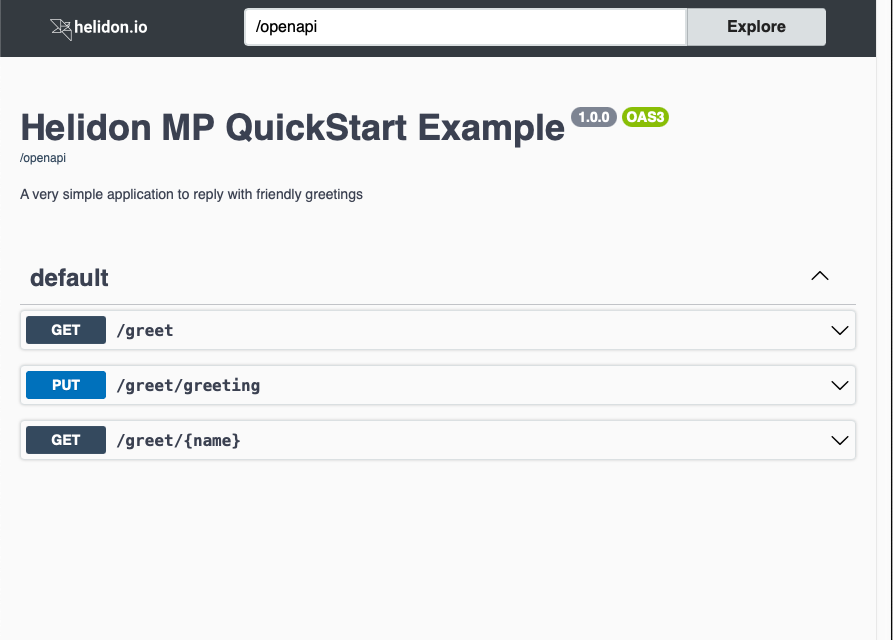
The example below shows the UI for the Helidon MP QuickStart greeting application.
Example OpenAPI UI Screen
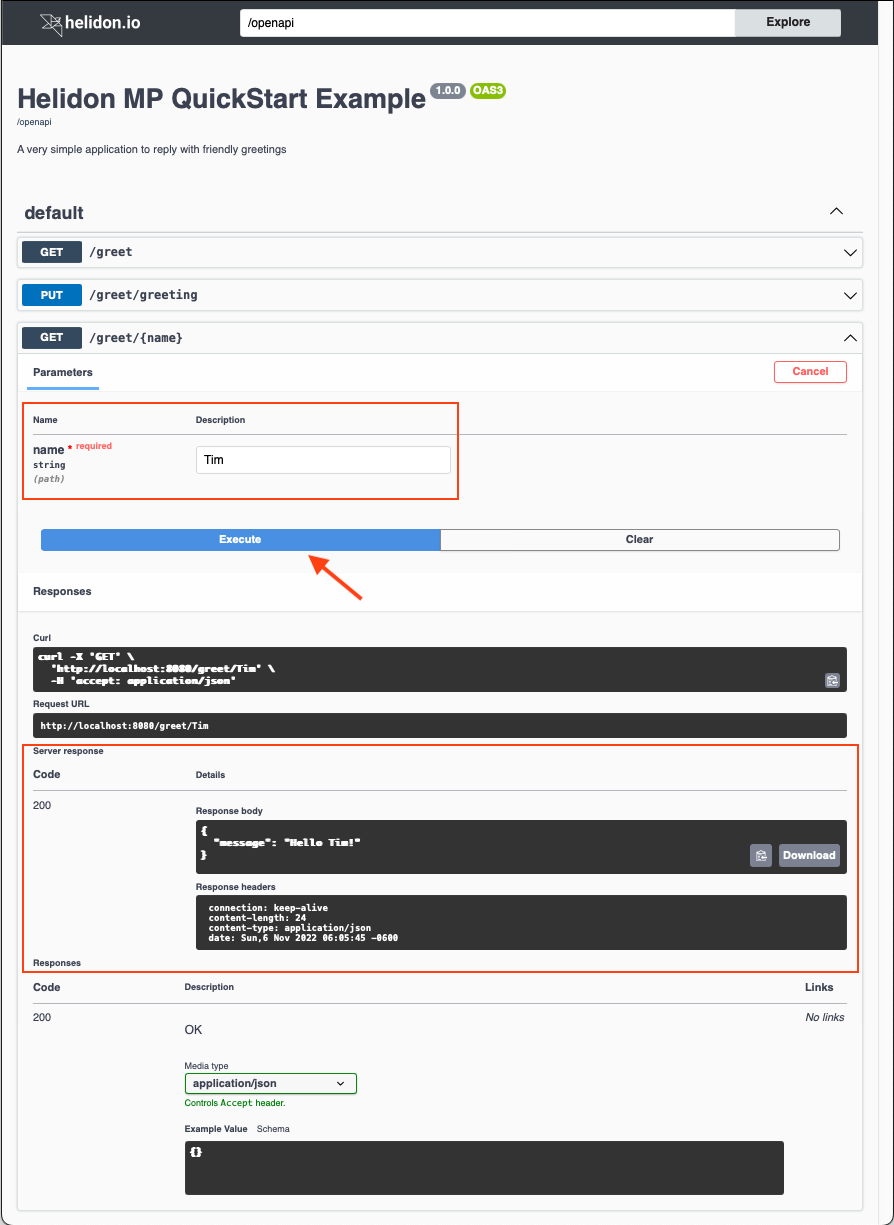
With the OpenAPI UI displayed, follow these steps to access one of your service’s operations.
- Find the operation you want to run and click on its row in the list.
- The UI expands the operation, showing any input parameters and the possible responses. Click the "Try it out" button in the operation’s row.
- The UI now allows you to type into the input parameter field(s) to the right of each parameter name. Enter any required parameter values (first highlighted rectangle) and any non-required values you wish, then click "Execute" (highlighted arrow).
- Just below the "Execute" button the UI shows several sections:
- the equivalent
curlcommand for submitting the request with your inputs, - the URL used for the request, and
- a new "Server response" section (second highlighted rectangle) containing
several items from the response:
- HTTP status code
- body
- headers
- the equivalent
The next image shows the screen after you submit the "Returns a personalized greeting" operation.
Note that the UI shows the actual response from invoking the operation in the "Server response" section. The "Responses" section farther below describes the possible responses from the operation as declared in the OpenAPI document for the application.
Example OpenAPI UI Screen
API
Your Helidon MP application does not use any API to enable or control Helidon OpenAPI UI support. Adding the dependency as described earlier is sufficient, and you can control the UI behavior using configuration.
Configuration
To use configuration to control how the Helidon OpenAPI UI service behaves, add
mp.openapi.services.ui settings to your
META-INF/microprofile-config.properties file.
Configuration options
| Key | Type | Default | Description |
|---|---|---|---|
web- | String | Full web context (not just the suffix) | |
options | Map< | Merges implementation-specific UI options | |
enabled | Boolean | true | Sets whether the service should be enabled |
The default UI web-context value is the web context for your OpenApiFeature
service with the added suffix /ui. If you use the default web context for both
OpenApiFeature and the UI, the UI responds at /openapi/ui.
Recall that you can configure the Helidon OpenAPI component to change where it serves the OpenAPI document.
mp.openapi.web-context=/my-openapi
In this case, the path for the UI component is your customized OpenAPI path with
/ui as a suffix. With the example above, the UI responds at /myopenapi/ui
and Helidon uses standard content negotiation at /myopenapi to return either
the OpenAPI document or the UI.
Separately, configure the entire web context path for the UI independently of the web context for OpenAPI.
Configuring the OpenAPI UI web context:
mp.openapi.services.ui.web-context=/my-ui
mp.openapi.services.ui.web-context setting assigns the entire
web-context for the UI, not the suffix appended to the OpenApiFeature
endpoint.With this configuration, the UI responds at /my-ui regardless of the path for
OpenAPI itself.
The SmallRye OpenAPI UI component accepts several options, but they are of
minimal use to application developers, and they must be passed to the SmallRye
UI code programmatically. Helidon allows you to specify these values using
configuration in the mp.openapi.services.ui.options section. Helidon then
passes the corresponding options to SmallRye for you. To configure any of these
settings, use the enum values they are all lower case declared in the SmallRye
Option.java class as the keys in your Helidon configuration.